- Table of Contents
- What You’re Protecting Against (In Plain English)
- Quick Wins: The 15-Minute Security Boost
- Checklist Part 1 — Hosting & Network Layer Hardening
- 1) Choose a security-first hosting environment
- 2) Enforce HTTPS everywhere (no exceptions)
- 3) Use a WAF + CDN to block attacks before they reach WordPress
- 4) Use staging for changes (updates, new plugins, theme edits)
- Checklist Part 2 — WordPress Core, Themes, Plugins
- 5) Keep core, themes, and plugins updated (with a safe process)
- 6) Delete unused plugins and themes (do not just “deactivate”)
- 7) Audit plugin quality before installing
- 8) Use a security plugin (but don’t rely on it alone)
- Checklist Part 3 — Accounts, Roles & Login Defense
- 9) Tighten admin access (principle of least privilege)
- 10) Enforce strong passwords + a password manager
- 11) Enable 2FA for all admins (and ideally editors)
- 12) Protect wp-admin and login endpoints
- 13) Disable XML-RPC if you don’t need it
- Checklist Part 4 — Files, Database & Configuration Hardening
- 14) Fix file permissions (especially wp-config.php)
- 15) Disable theme/plugin file editing in wp-admin
- 16) Rotate security keys and salts
- 17) Harden database access and credentials
- 18) Reduce “write + execute” risks (uploads hardening)
- Checklist Part 5 — Monitoring, Backups & Incident Response
- 19) Backups: your last line of defense
- 20) Monitoring + alerts (catch issues early)
- 21) Have an incident response plan (before you need it)
- Ongoing Security Maintenance Schedule
- Key Takeaways
- FAQ
- Do I really need a security plugin if I use good hosting?
- What is the single most important WordPress security step?
- Should I disable XML-RPC?
- How often should I back up my WordPress site?
- What’s a WAF and why does it matter for WordPress?
- References & Further Reading
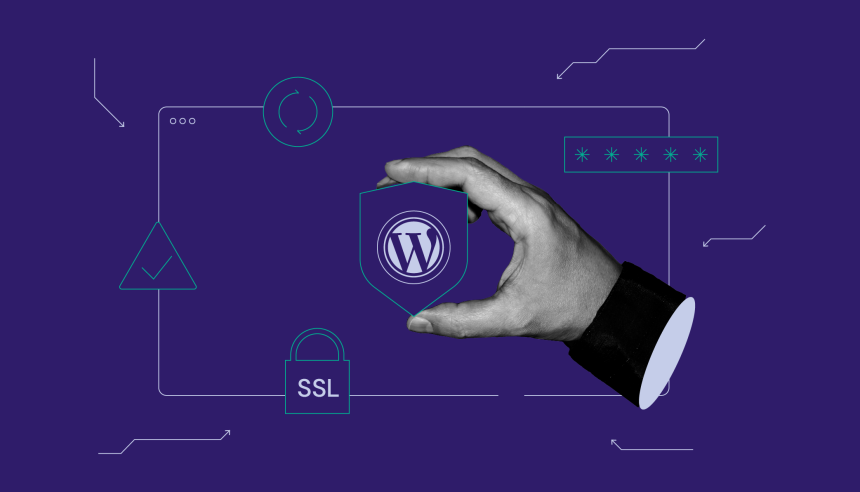
WordPress powers a huge portion of the web, which makes it a frequent target for automated attacks. The good news: most successful hacks are not “movie-style” break-ins—they’re preventable issues like weak passwords, outdated plugins, risky server settings, or missing backups.
This guide gives you a practical, no-fluff WordPress security checklist you can follow today. You’ll harden your site across hosting, login security, plugin hygiene, file/database protection, and recovery planning—so even if something goes wrong, you can restore quickly.
Try Kinsta (Affiliate Link)
Table of Contents
- What You’re Protecting Against (In Plain English)
- Quick Wins: The 15-Minute Security Boost
- Checklist Part 1 — Hosting & Network Layer Hardening
- Checklist Part 2 — WordPress Core, Themes, Plugins
- Checklist Part 3 — Accounts, Roles & Login Defense
- Checklist Part 4 — Files, Database & Configuration Hardening
- Checklist Part 5 — Monitoring, Backups & Incident Response
- Ongoing Security Maintenance Schedule
- Key Takeaways
- FAQ
- References & Further Reading
What You’re Protecting Against (In Plain English)
Most WordPress compromises fall into predictable categories:
- Brute-force logins: bots guessing passwords on wp-admin and XML-RPC.
- Vulnerable plugins/themes: outdated components, abandoned plugins, or misconfigured security settings.
- Malware injection: malicious scripts added to files or the database to redirect visitors or steal data.
- Server misconfiguration: weak file permissions, exposed admin tools, poor isolation on shared hosting.
- Phishing & credential theft: attackers trick admins into giving away logins.
Quick Wins: The 15-Minute Security Boost
If you do nothing else today, do these quick wins first:
- Update WordPress core, your theme, and plugins.
- Change all admin passwords to long unique passwords (use a password manager).
- Enable 2FA for all admin accounts.
- Delete unused plugins/themes (inactive still matters).
- Confirm backups exist and you can restore them.
- Turn on SSL (HTTPS) across your entire site.
| Quick Win | Impact | Effort |
|---|---|---|
| Update core + plugins | Blocks known exploits | Low |
| Enable 2FA for admins | Stops credential-based takeovers | Low |
| Verify backups + restore | Your “undo” button | Medium |
If you want to reduce the heavy lifting (server firewalling, DDoS mitigation, malware cleanup, backup options), consider managed hosting that includes these protections:
Checklist Part 1 — Hosting & Network Layer Hardening
1) Choose a security-first hosting environment
Your host is your first security boundary. Many WordPress compromises become easier on low-quality shared hosting due to weaker isolation, limited firewall controls, and slow patching.
A security-first managed host typically provides: web application firewall (WAF), DDoS protection, hardened stack, isolation between sites, proactive monitoring, and rapid recovery workflows. If you want an all-in-one approach, this is where Kinsta is often positioned—managed WordPress hosting with an emphasis on performance and security.
| Security Capability | Typical Shared Hosting | DIY VPS | Managed WP Hosting (e.g., Kinsta) |
|---|---|---|---|
| WAF + DDoS Protection | Often limited | You configure | Typically included/managed |
| Isolation Between Sites | Weaker | Depends on setup | Strong isolation is common |
| Malware Cleanup | Not guaranteed | You handle | Often assisted/pledged |
| Backups & Restore | Basic | You build it | Multiple options common |
2) Enforce HTTPS everywhere (no exceptions)
- Install an SSL certificate and force HTTPS site-wide.
- Update WordPress Address + Site Address to https://.
- Fix mixed-content issues (images/scripts still loading over http).
3) Use a WAF + CDN to block attacks before they reach WordPress
A WAF helps filter malicious requests, block known exploit patterns, and reduce bot noise. A CDN can also absorb traffic spikes and improve speed. If you’re using Cloudflare, configure bot protections, rate limiting (if available), and strict firewall rules for sensitive endpoints.
If you prefer to simplify this layer, Kinsta includes Cloudflare integration with firewalling and DDoS protections (plus SSL). That matters because the best WordPress “security plugin” can’t stop a large network-level attack by itself.
/wp-login.php, /wp-admin, and xmlrpc.php.4) Use staging for changes (updates, new plugins, theme edits)
Staging environments reduce risk because you can test updates and security changes before pushing them live. If your host provides one-click staging and easy rollbacks, use it—especially for WooCommerce sites or high-traffic blogs.
Internal link suggestion: See our related guides on SenseCentral:
SenseCentral WordPress Guides and
Hosting Comparisons.
Checklist Part 2 — WordPress Core, Themes, Plugins
5) Keep core, themes, and plugins updated (with a safe process)
- Enable auto-updates for minor core releases at minimum.
- Update plugins weekly (or sooner if a security patch drops).
- Before major changes: backup + test in staging.
6) Delete unused plugins and themes (do not just “deactivate”)
Inactive plugins/themes can still be discovered and exploited in certain conditions. If you’re not using it, remove it. Keep one default theme as a fallback and your active theme only.
7) Audit plugin quality before installing
Use a simple plugin audit process:
- Check last updated date and active installations.
- Read recent reviews (not just the overall rating).
- Avoid plugins that duplicate functionality (bigger attack surface).
- Prefer reputable vendors and plugins with consistent security updates.
8) Use a security plugin (but don’t rely on it alone)
A security plugin can help with login throttling, file integrity monitoring, malware scanning, and alerts. Examples include Wordfence, Sucuri, Solid Security, and others. Choose one and configure it properly—then rely on hosting/CDN/WAF as your upstream shield.
Checklist Part 3 — Accounts, Roles & Login Defense
9) Tighten admin access (principle of least privilege)
- Only give Administrator role to people who truly need it.
- Create separate accounts for each person (no shared logins).
- Remove old contributors and contractors immediately.
10) Enforce strong passwords + a password manager
- Use long passwords (16+ characters) and never reuse them.
- Use a password manager to generate and store credentials.
- Rotate passwords after any suspicious event.
11) Enable 2FA for all admins (and ideally editors)
Two-factor authentication is one of the highest ROI security moves you can make. If a password leaks, 2FA prevents immediate takeover.
- Install a 2FA plugin (example: WP 2FA or similar).
- Require 2FA for Administrator accounts at minimum.
- Store recovery codes securely.
12) Protect wp-admin and login endpoints
- Limit login attempts / add throttling.
- Use CAPTCHA for login forms if bot traffic is high.
- Consider restricting wp-admin by IP (if your IP is stable).
13) Disable XML-RPC if you don’t need it
XML-RPC is often abused for brute-force and amplification-style attacks. If you’re not using Jetpack features that require it, mobile app publishing, or legacy integrations, disabling it can reduce risk.
- Disable via a security plugin, host rules, or server config.
- If you must keep it, restrict access and enforce rate limiting.
Try Kinsta (Affiliate Link)
Checklist Part 4 — Files, Database & Configuration Hardening
14) Fix file permissions (especially wp-config.php)
Incorrect permissions are a classic hardening failure. Your goal is to allow WordPress to run normally while restricting write access where it’s not needed.
- Ensure
wp-config.phpis hardened (avoid overly permissive settings). - Lock down sensitive directories if your host allows it.
- Disable directory browsing on the server (if applicable).
15) Disable theme/plugin file editing in wp-admin
If an attacker gains admin access, the built-in file editor makes it easier to inject malicious code. Disabling file editing removes a convenient attack path.
Add this to wp-config.php:
define('DISALLOW_FILE_EDIT', true);16) Rotate security keys and salts
WordPress uses secret keys/salts for cookie authentication. If these are exposed, sessions can be hijacked. Rotating keys forces users to log in again and can invalidate stolen cookies.
17) Harden database access and credentials
- Use a strong, unique database password.
- Limit database user privileges to what WordPress needs.
- Restrict database access to localhost/private network if possible.
18) Reduce “write + execute” risks (uploads hardening)
Many hacks abuse writable directories like /wp-content/uploads/. If your server supports it, prevent PHP execution in uploads and restrict risky file types. Some managed hosts apply protections at the platform level.
Checklist Part 5 — Monitoring, Backups & Incident Response
19) Backups: your last line of defense
If your site is compromised, clean-up may take hours—or days. Backups let you restore fast. Your backup strategy should be:
- Automatic: scheduled backups without manual work.
- Offsite: not stored only on the same server.
- Tested: you’ve actually restored at least once.
- Versioned: multiple restore points (not just “yesterday”).
20) Monitoring + alerts (catch issues early)
- Enable uptime monitoring (so you know when the site goes down).
- Enable security alerts (file changes, new admin users, login spikes).
- Watch for SEO spam, redirect hacks, and strange outbound links.
21) Have an incident response plan (before you need it)
When something goes wrong, speed matters. Create a simple checklist:
- Put the site in maintenance mode (if needed) to protect visitors.
- Change all admin passwords and revoke suspicious accounts.
- Restore from a clean backup (fastest route for many site owners).
- Scan files and database; remove backdoors.
- Patch the root cause (plugin vulnerability, weak password, etc.).
- Request a review/unblock if Google/Search Console flags malware.
Ongoing Security Maintenance Schedule
Security is not a one-time task. Use this schedule to stay protected:
Weekly
- Update plugins/themes (after a backup).
- Review security plugin logs (login failures, blocked IPs).
- Spot-check your site for odd redirects or new pages.
Monthly
- Remove unused plugins/themes and old admin accounts.
- Run a malware scan (or verify host-level scanning status).
- Test restoring a backup on staging.
Quarterly
- Audit plugin stack: remove duplicates, replace abandoned tools.
- Review user roles and permissions.
- Rotate critical credentials if your risk profile is high.
Key Takeaways
- Security is layered: hosting/WAF + WordPress hygiene + strong authentication + backups.
- 2FA + updates prevent a large percentage of common compromises.
- Delete unused plugins/themes to reduce attack surface.
- Harden wp-config and permissions to block easy wins for attackers.
- Backups + restore testing are the difference between a quick recovery and a prolonged outage.
FAQ
Do I really need a security plugin if I use good hosting?
Good hosting can handle many server/network protections, but a security plugin can still add application-level visibility (login events, file change alerts, additional rules). The best approach is layered: host/WAF + WordPress-level hardening.
What is the single most important WordPress security step?
If forced to pick one: enable 2FA for admin accounts. Combined with strong unique passwords, it blocks credential stuffing and most “stolen password” scenarios.
Should I disable XML-RPC?
If you don’t need it, disabling XML-RPC can reduce brute-force and abuse risk. If you do need it, restrict access and enforce rate limiting.
How often should I back up my WordPress site?
For most blogs: daily backups are a good baseline. For WooCommerce or frequently updated sites: more frequent backups are safer. The key is having multiple restore points and actually testing restore.
What’s a WAF and why does it matter for WordPress?
A Web Application Firewall filters malicious requests before they hit WordPress. It can block exploit patterns, bad bots, and certain injections—reducing the burden on plugins and your server.